PSEB 12th Class Sociology Notes Chapter 1 Tribal Society

This PSEB 12th Class Sociology Notes Chapter 1 Tribal Society will help you in revision during exams.

PSEB 12th Class Sociology Notes Chapter 1 Tribal Society

Simple Division of Labour:

  • Tribal societies are based on a simple division of labor in which age and sex are the most important bases.

Animism:

  • Animism is faith in spirits that there exist spirits even after death. This theory was given by Tylor.

Totemism:

  • When any object, plant, animal, or stone is considered sacred by a tribe, it is known as a totem.
  • Belief in totem is known as totemism. So, the sacred object is not touched or eaten.
  • It is believed that there exists some spiritual power in that object.

PSEB 12th Class Sociology Notes Chapter 1 Tribal Society

Subsistence Economy:

  • A subsistence economy is an economy in which people only fulfill their needs.
  • Tribal societies are simple in nature and they fulfill their needs by hunting, collecting, fishing, and collecting other forest products.
  • The barter system also exists in tribal societies.
  • There is no notion of profit among tribal societies.
  • In fact, their economy is based on the fulfillment of their needs.

Shifting Cultivation:

  • This is one of the methods of doing agriculture among tribal people.
  • It is also known as Jhum or Podu agriculture in different tribes.
  • In this method, first of all, the forest is cleared by cutting trees and then cleared land is sown with seeds before the rainy season.
  • After the rain, the crop is ready to cut down. Later on, another piece of land is cleared to do agriculture and the process continues.

→ Indian tribal heritage is quite rich and varied. Here different racial and linguistic tribes live and they are at different levels from an economic and technological point of view.

→ Though many changes are coming among Indian tribes still they are backward and the government is giving special attention to their welfare.

→ Tribals in India are known by different names such as Vanyajati, Vanvasi, Pahari, Adimjati, Adivasi, Janjati, Anusuchit Janjati (Scheduled Tribe) etc.

PSEB 12th Class Sociology Notes Chapter 1 Tribal Society

→ Actually, the tribe is an endogamous group that lives in a particular geographical area, which has a specific language and culture. Technically, they live in ancient conditions and their economy is subsistence and based on the barter system.

→ Tribes are divided on different bases. Sir Herbert Risley has given their classification on different bases. They can also be divided on an economic basis and on the basis of their integration into the mainstream of our country.

→ There exist hundreds of tribes in India but seven major tribes are there whose population is one lac or more such as the Gond, the Bhils, the Sanfchals, the Oraons, the Munda, and the Khonds.

→ There exist many types of families, in tribal society, on many bases such as authority, place of living, and descent. In the same way, many types of marriages exist in tribal society.

PSEB 12th Class Sociology Notes Chapter 1 Tribal Society

→ Tribal societies face many problems but the most important one is deforestation and displacement. Due to deforestation, tribals are displaced from their areas and are forced to move somewhere else. That’s why they face many problems.

→ Many changes are coming in tribal society such as, they are integrating into the mainstream of the country, they are adopting social ways of living of their nearby society, they are leaving their own occupations and are adopting the new ones and they are migrating to other areas.

PSEB 6th Class Computer Notes Chapter 7 Input Devices

This PSEB 6th Class Computer Notes Chapter 7 Input Devices will help you in revision during exams.

PSEB 6th Class Computer Notes Chapter 7 Input Devices

Introduction
A computer cannot work without getting input. A computer needs data and instructions as input. This input is provided to the computer using input devices. There are many types of input devices used these days. Each device is used to give instructions to the computer. For example: the keyboard is used to enter textual data in the keyboard and the scanner is used to input graphical data to the keyboard.

Input Devices
An input device is a device which is used to enter data and instructions in the computer, It means input devices read data into a computer system. It allows users to interact with computers and control it. Devices that accept data and instructions from users are called input devices. Input devices are needed to give input to the computer.

Uses of Input Devices
The main uses of input devices are:

  • To enter data in the computer.
  • To provide the necessary instructions for processing.

We use input devices to give data and information to the computer.

Generally used Input devices are:

  • Keyboard
  • Mouse
  • Microphone
  • Scanner
  • Web Camera
  • Joy Stick
  • Light Pen
  • Touch Pad
  • Bar code reader
  • Touch Screen
  • Biometric
  • Electronic Signature Pad.

PSEB 6th Class Computer Notes Chapter 7 Input Devices

Keyboard:
The keyboard is the main input device used in computers. This device is used to enter textual data to the computer. The keyboard is a flat device which has various keys on it. When a key is pressed on the keyboard, it is a special signal to the computer. There are many types of keys available on the keyboard. Also many types of keyboard are available in the market. The user can use the keyboard as per his convenience.
PSEB 6th Class Computer Notes Chapter 7 Input Devices 1

Types of Keys: Keyboard has the following types of keys. These are:
PSEB 6th Class Computer Notes Chapter 7 Input Devices 2

Types of Keys
Alphabets Numeric Function Special Arrow

  • Alphabetical Keys
  • Numeric Keys
  • Functional Keys
  • Special Keys
  • Arrow Keys
  • Special Symbol Keys.

1. Alphabetical Keys (A to Z): Alphabetical keys are used to enter alphabets in the computer. Alphabetical keys are used to type characters. These keys are present in the middle of the keyboard. All the keys A to Z are called alphabetical keys.

2. Numeric Keys (0 to 9): The numeric keys are used to type numbers. These keys are present below the functional keys. On the right side of the keyboard a special pad is present. It contains 17 keys. This keypad is called numeric key pad.This pad is similar’ to a calculator, because along with numbers it also has mathematical signs and enter keys. On the left top of the pad, a key named num lock is also provided. The keys of this key pad work if num lock is on. The status indicated by the indicator on the keyboard.

3. Functional Keys (FI to F12): These are 12 keys. These are from FI to FI2. These are located at the top of the keyboard. The function of these keys can be different for different programs. For example: F1 key is generally used for help.

Functional Keys
PSEB 6th Class Computer Notes Chapter 7 Input Devices 3

4. Special Keys: Each special key is used to perform a special function. Some special keys with their functions are mentioned as under:

Special Key Function
1. Delete To delete characters written on right side of cursor.
2. Backspace To erase character present on left side of cursor.
3. Enter To start a new line or to execute the command.
4. Space Bar To insert space between two words or texts.
5. Shift It is used along with other key, for example: when shift and ‘a’ pressed together, it will type A.
6. Ctrl It is also used along with other key, for example: in paint Ctrl and S key when pressed together, they save a file.
7. Alt It is also used with another key, for example Alt + F4 are pressed together to close an open program.
8. Caps lock When we press the caps lock key then an indicator appears on the keyboard. It means caps lock is on, it means capital letters will be written.

5. Arrow Keys: These are used to move the cursor. These are four in number. These can move up. down, left, right. Arrow Keys are used to move the cursor in all directions.

6. Special Symbol Keys: These are special symbols used in typing to represent some special meaning. These symbols are used to represent pause in sentence, full stop, arithmetic operations etc.

Mouse:
Mouse is an important Input Pointing device. It is used to control cursor movements on the screen. It is a small hand holding device. It is also called a pointing device. Generally it has three buttons. It is called a mouse because of its shape. Mouse is rolled over a flat surface. As you move a mouse, the cursor also moves on the screen in the same direction.

Mouse Pad: The pad on which we move the mouse is known as the Mouse pad. Mouse has following three buttons:

  1. Left Button
  2. Right Button
  3. Scroll Button

1. Left Button: Generally left button is used for selecting an item or running a program. When the left button on the mouse is pressed then it is called a “click” operation. When this button is pressed twice, it is called “Double Click”. The programs are opened with double click. While things are selected with a single click.

2. Right Button: When we press the right button, it is called right click. It is used to open a shortcut Menu.

3. Scroll Button: It is just like a wheel fixed in the centre of the left and right button of the mouse. It rotates the screen which is called scrolling. It is used to move the screen up and down.

Microphone
It is also called Mic and is used for sound input. We can give voice instructions to computers with the help of a mic on our computer. Now the computers are capable of getting voice commands also. So the user can speak and the computer will act accordingly to the command given using voice. If a computer has a microphone then you can record your own voice. We can listen to recorded voices with the output device. Those users, who cannot type can give input to the computer with a microphone. Using the microphone we can also talk to our friends on the Internet.

Scanner

  • Scanner is an input device. It is used to add text and pictures on the computer. It works like a Photostat Machine.
  • Scanner scans a picture or document and gives it to the computer in the form of a digital signal. Scanners are available in many types and shapes in the market.

Web Camera:
A web camera is just like a digital camera attached to a computer. It gives pictures and videos as input to the computer. Web Camera is used to click photographs. It works similar to a digital camera, but the web camera saves photos on the computer. Web camera is not an expensive device. We can use this device for video conferencing.

Touch Pad
Touch pads are used in laptops in the form of a small panel containing different touch sensitive areas. It is used in place of a mouse. The buttons of touchpad are similar to mouse i.e left right button which are at the bottom of touch pad. A touch pad is operated by finger and dragging it across a flat surface. As we move our finger on the surface, the cursor on screen will move in the same direction.
PSEB 6th Class Computer Notes Chapter 7 Input Devices 4

Bar Code Reader
A Bar code reader (or Bar code scanner) is an electronic device for reading printed bar codes. Like a flatbed scanner, it consists of a light source, a lens and a light sensor translating optical impulses into electrical ones. It is used in shops, stores for different reasons. These are helpful in stores in order to maintain accurate and updated inventory monitoring. They can help to determine the price of an item. It is a fixed input gadget that is used to capture and read information enclosed in a bar code. This device consists of a scanner.

PSEB 6th Class Computer Notes Chapter 7 Input Devices

Light Pen
It is a pointing device. It is just like a pen connected to a VDU. The tip of the light pen contains a light sensitive element which when placed against the screen, detects the light from the screen enabling the computer to identify the location of the pen on the screen. Light pens have the advantage of drawing directly on to the screen.

Joy Stick
Joy Stick consists of a base and a stick that can be moved in any direction. The stick can be moved slowly or quickly as required. Some Joy Sticks have sticks that can also be rotated to the left or right. Because of the flexible movements of the Joy Stick, it can provide much greater control than the keys on a keyboard. It is often used to control video games and usually have one or more push buttons.
PSEB 6th Class Computer Notes Chapter 7 Input Devices 5

Touch Screen
This is a type of display screen that has a touch-sensitive transparent panel covering the screen. Instead of using a pointing device such as a mouse or light pen, you can use your finger to point directly to objects on the screen. For example: ATM machines, smart phones etc.

Biometric:
Biometric verification is any means by which a person can be uniquely identified by its body parts like fingeiprints, hand, eye, etc. These devices are having very sensitive scanners placed in them. To use it, place the finger on this device, the scanner scans the pattern of fingerprints and sends the signal to the digital circuit for verification purposes. Authentication of the same allows the requested operation. On failure of verification, an error message of the same is displayed.
PSEB 6th Class Computer Notes Chapter 7 Input Devices 6
Biometric machine

Electronic Signature Pad
It is an electronic device used to capture written signatures and convert them to digital format. This device is having a hand holding pen and a digitally sensitive pad. When the pen is moved on the pad, its movements are being identified and given to the computer in the form of digital signal to make the respective input.
PSEB 6th Class Computer Notes Chapter 7 Input Devices 7

PSEB 6th Class Computer Notes Chapter 6 Hardware and Software

This PSEB 6th Class Computer Notes Chapter 6 Hardware and Software will help you in revision during exams.

PSEB 6th Class Computer Notes Chapter 6 Hardware and Software

Introduction:
A Computer is made up of two parts: hardware and software. Both the parts are necessary for working of computer system. Hardware are the physical components of the computer and the instructions given to the computer in the form of program is called software. This software is stored on some hardware. So software makes the hardware workable and hardware stores the software.

Hardware
Hardware are the physical components of a computer system. It includes all the physical components which can be touched and which can be seen. Examples of some hardware are keyboard, mouse, printer, monitor and CPU. Different types of hardware devices are used for different purposes.

Features of Hardware
Following are the features of hardware:

  • Hardware can be touched and felt.
  • Hardware occupies space.
  • Hardware has weight.

There are different types of hardware used for computer systems:
System Unit: The system unit is also known as the Central Processing Unit of computer system. This unit acts as the brain of the computer. It includes the essential components such as motherboard, processor, RAM, hard disk, CD-ROM etc. Normally these devices are packed in a metallic or plastic case known as a system case or cabinet.
PSEB 6th Class Computer Notes Chapter 6 Hardware and Software 1

Motherboard: Motherboard is a board which holds all the components together. This board is also known as a printed circuit board. All the components of the computer system are connected to this directly or using some wires.
PSEB 6th Class Computer Notes Chapter 6 Hardware and Software 2

PSEB 6th Class Computer Notes Chapter 6 Hardware and Software

The main components connected to the motherboard are:

  • Hard Drive: Hard drive or hard disk is the main storage device of a computer. It is used to store data permanently. The main software like operating systems are also placed on this hard disk.
  • Video Card: This card is used to display the output properly on a monitor.
  • Processor: Processor processes all the instructions given to the computer. It performs all the Arithmetic and logical unit operations. It controls all the activities of the computer also.
  • Fan: The computer gets heated when it is used. So a fan is placed in the CPU to keep it cool.
  • RAM: RAM is the primary memory of computer. It is also known as Random Access Memory. All the data and instructions are loaded in this memory before processing. This memory is a volatile type of memory. It means the data gets lost when the computer is switched off. The computer cannot work without Random Access Memory.
  • Power Supply: This unit is responsible for giving power to all the components of the computer.
  • CD/DVD: This device is used to play, read and record data and instructions on CD or DVD.

Important Points for Taking Care of Hardware
If the hardware components of the computer are not taken care of, they get spoiled. It is very necessary to take care of these components.

The following things should be kept in mind when using the hardware:

  • Keep all the parts of the computer clean.
  • Cover it after use.
  • Do not pull cables or computer Parts.
  • Press keyboard keys gently.
  • Do not eat in the Computer Room.
  • Keep Hardware in the proper manner.
  • Keep your shoes outside the computer lab.
  • Handle different parts of the computer in a proper way.
  • Use soft cloth or a brush to clean the computer.
  • Do not clean the equipment while the computer is turned on.

Software:
Software is a set of instructions or programs which are used to make a computer functional. Physically software is a collection of programs. These programs are made for various purposes. This software is normally stored on a secondary storage device. The software can not be touched. Each type of software helps the computer to perform a particular operation.

Features of Software
The following are the main features of software:

  • Software have no weight.
  • We cannot touch the software.
  • A software makes a hardware functional.
  • Software is stored on hardware.

PSEB 6th Class Computer Notes Chapter 6 Hardware and Software 3

Computer software can be divided into the following categories:

  • System Software
  • Application Software

PSEB 6th Class Computer Notes Chapter 6 Hardware and Software 4

System Software
System software can be defined as a set of programs which are necessary for functioning of the computer itself. This program directly contacts the computer hardware and gets the work done from that hardware. Without a system software computer cannot work. System software helps to read the data from input devices and transfer the processed information to output devices. This software acts like a computer manager of computer.

The main types of this software are:

  • Operating system
  • Language translators
  • Utility programs

The software is difficult to design and is also costly. These softwares are mainly designed by highly experienced people.

Application Software:
Application software can be defined as a software that provides a solution to a specific problem of the user. This software is not necessary for working on a computer. This software do not directly contact the hardware. This software works with the help of system software. One application software is developed for some specific purpose only. There are many types of application software available. The application software are Word processor, Spreadsheet solutions, presentation software, pick packages.

PSEB 6th Class Computer Notes Chapter 6 Hardware and Software

Difference Between System Software and Application
Both system and application software are types of software. They are related to each other. They also have many differences. Some of the differences are given below:

System Software Application Software
(i) It is necessary for functioning of computer. (i) Application software is not necessary for functioning of computer.
(ii) This software is complex in nature. (ii) Application software is not as complex as system software.
(iii) System software are costly. (iii) Application software are not costly.
(iv) This software is developed by highly experienced person only. (iv) This software can be developed by experienced person.
(v) Computer cannot work without system software. (v) Computer can work without application software.
(vi) System software are bigger in size. (vi) Application software are normally smaller in size.
(vii) Examples of system software are Operating Systems, Language translator etc. (vii) Examples of application software are Word processor, Spread­sheet, Graphic Solution etc.

Relationship/Differences between Hardware and Software
A Computer system is made up of hardware and software. Both are necessary for a computer system. Without software hardware cannot work. It is just like a mechanical device without software. A software cannot be developed or stored without the help of hardware. Hardware is also controlled by software so we can say that hardware and software are both related to each other. There are many differences between these two also. Some of the differences are given below:

Hardware Software
(i) Hardware is a physical quantity. (i) Software is not a physical quantity.
(ii) Hardware can be touched. (ii) Software cannot be touched.
(iii) Hardware cannot work without software. (iii) Software cannot be stored without hardware.
(iv) Hardware is developed by engineers. (iv) Software is developed by developers.
(v) There are four types of hardware. (v) There are two types of software.
(vi) It could be costly as well as cheaper (vi) Software is usually costly.

PSEB 6th Class Computer Notes Chapter 5 MS Paint Part-2

This PSEB 6th Class Computer Notes Chapter 5 MS Paint Part-2 will help you in revision during exams.

PSEB 6th Class Computer Notes Chapter 5 MS Paint Part-2

Introduction:
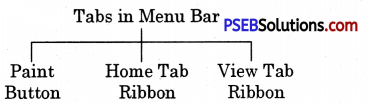
There are two types of Ribbon in Paint:
PSEB 6th Class Computer Notes Chapter 5 MS Paint Part-2 1

Home Tab Ribbon
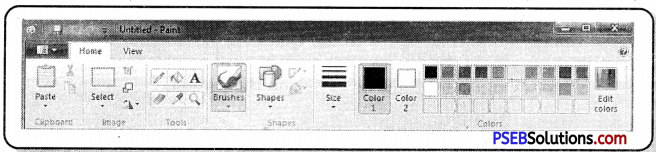
Most of the commands in MS Paint are placed in the home tab ribbon. Home Tab Ribbon of MS Paint contains the most usable tools. This Ribbon appears below the menu bar of MS Paint.

Clipboard Menu
The clipboard menu has three options-Cut, Copy and Paste. Cut and Copy icons are shown only when a selection is active.

PSEB 6th Class Computer Notes Chapter 5 MS Paint Part-2

Image Menu
When we click the down arrow just below the dotted rectangle or just below the word image, a menu offers us further choices.
Before we can use the buttons on the right of this menu, we must select the part of our drawing that we want to work with.

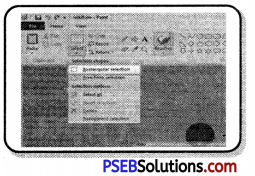
1. Transparent Selection: At the bottom of the Select menu, we can see Transparent selection. This option is useful enough as it removes the white background of selection. We can use our selection with only drawing objects. This option is most frequently used. We can add this option to Quick Access bar for its fast access. There will be a checkbox in front of the Transparent selection.

While that box has a tick in it, selections will be transparent. To make our selections opaque, just click the checkbox to remove the tick.

2. Rectangular Selection: Usually we can make a rectangular selection. After clicking the rectangular selection tool, position the cursor at the top left of the part we want to select, press your mouse button and drag down to its bottom right. A dashed rectangle will appear around our selection. With the Move Cursor we can move our selection or drag while holding the Ctrl key to make a copy of it.

3. Freeform Selection: We may need to make a freeform selection if the part of our drawing that we want to work with is crowded up closely with parts we don’t want to include.

1. Copying a Selection: There is a Copy button on the ribbon for copying, but we can make multiple copies of a selection in a faster way also. For this purpose draw a selection around the part we want to copy, using either the rectangular or the freeform selection tool.
Whenever Move Cursor appears. Hold the Ctrl key and drag your selection to its new location. A new copy of the selection will be moved to the new location. If we want to continue copying, press the Ctrl key again as we begin to drag the second time. Repeat as many times as we needed.

2. Painting with a Selection: Select a small piece from a picture, for example, with more than one color. Hold down the Shift key while dragging it around to make an abstract pattern. We can even write with a small selection.

3. Selection option: To the right of the selection icon we can see three options, Crop, Resize and Rotate flip.
1. Crop: Crop button is like Diamond shape with a line at the top . It helps us to crop our picture to the selected area only. If we click the Save icon after cropping to a selection, our large drawing page will be replaced with the new selection area.

2. Saving a selected area as a drawing:

  • Save the picture we are working on.
  • Select the part we want to save as a drawing. Click the Crop button.
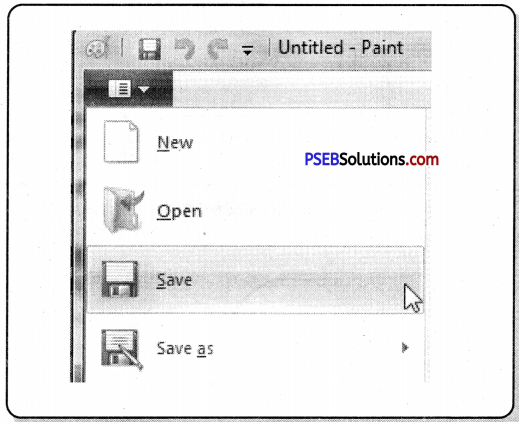
  • Go to the Paint button and open the menu.
  • Click Save as.

Type a name for the new Selected drawing and click Save. We will return to the Paint window with the only selected drawing and the name on the Title bar is the name we used when saving the new Selection.

3. Resize and Skew: The second small button to the right of the large Select button will open the Resize and Skew dialog as shown in figure ahead:
PSEB 6th Class Computer Notes Chapter 5 MS Paint Part-2 2

Resize and Skew
(а) Resize: We can quickly resize a selection by dragging any of the little blocks or handles on the selection rectangle. However, if we want the size adjustment to be precise, we must use the Resize and Skew dialog box. When we click the Resize icon, the dialog box appears as shown in the figure.
Only the top half of this dialog is concerned with resizing.
Note: While the option Maintain aspect ratio is checked, whatever we type into the Horizontal slot will be repeated in Vertical and our selection will stay exactly in proportion. We can remove the check if we want the selection to be fatter or thinner.

(b) Skew: The bottom part of the Resize and Skew dialog box allows us to skew our selection. When we use this option, it makes our selection include a lot of border areas to avoid having part of the picture cut off. If this does happen, click Undo and make a wider selection before trying again. This blue box is skewed 20 degrees horizontally. We can skew a selection both horizontally and vertically.

(c) Rotate or Flip: This menu helps us in rotating our drawing item to 90 degrees or 180 degrees. We can also make mirror images of selections using this option. We can mirror the drawing either vertically or horizontally. We can use this option for making some systematic designs in MS Paint.
PSEB 6th Class Computer Notes Chapter 5 MS Paint Part-2 3

(d) Invert Color: Another set of options are available if we right click on a selection. It includes Cut, Copy, Paste, Crop, Select all, Invert selection, Delete, Rotate and Resize, the only one option that is available on this menu and nowhere else is Invert color. This option makes the light colours darken and vice-versa to create an invert colour pattern.

PSEB 6th Class Computer Notes Chapter 5 MS Paint Part-2

Tools Menu
The following tools are available in the tools menu of MS Paint:
1. Pencil: The pencil tool is used for free-hand drawing. We can work with pixel editing when using this tool in zoom-in view. When we work with the pencil tool, we must press the left mouse button to draw with Color 1 and with the right mouse button to draw with Color 2.
PSEB 6th Class Computer Notes Chapter 5 MS Paint Part-2 4
2. Fill with Color: The Fill with color tool is used to fill an area with a single color. Color 1 is used if we press the left mouse button on the area to be filled. Color 2 is used if we press with the right mouse button. This tool does not work successfully if we are trying to color different shades of one color. The Fill with Color tool always fills with a solid color.

3. Text Tool: The Text tool is used to insert any text. To begin inserting text, click on the text tool. Our cursor will change to an insertion bar. With this cursor we can draw the required size of area for texts. We must not click anywhere outside that area until our text is final from all aspects.
PSEB 6th Class Computer Notes Chapter 5 MS Paint Part-2 5
When we are using the Text Tool then the Text Toolbar starts appearing.

Formatting the Text:

  • Select the text we have typed.
  • Click the down arrow at the end of the Font Name box, so that a list of fonts drops down.
  • Run your cursor-without pressing any mouse buttons—up and down in the font list. As we do this, the appearance of the text we have typed will change accordingly. When we like what we see, click on the name of that font.
  • The font list will close.
  • We can repeat this process with the Font Size list also.
  • We can also click the Background from Transparent to Opaque or vice versa.
  • We can change both Color 1 and Color 2.

We can also type text in different colors, fonts and size, in the same text box. When we are making changes, only selected text will be affected. When we have completed editing of text, we can click anywhere outside of your text box. After clicking away from the text box, the Text Toolbar disappears and the text becomes part of our picture. Now, it cannot be edited in any way.

4. Eraser: The Eraser tool erases the part of a picture with the left button of the mouse pressed. It changes whatever is dragged across to the background color-Color 2 With the right button pressed, the eraser tool changes pixels of Color 1 to Color 2, but leaves everything else unaffected.

5. Color Picker: The Color Picker Tool is used to set the current foreground or background color and to match any color in our picture. It’s especially useful when colors in the picture are different from those on the palette. By picking a color from the picture, we can make sure that we are using the same color as already used in the drawing.

For example: we are zoomed in and working with the Pencil tool on an area that has many shades of red and we want to use one of those shades. Click the Color Picker and click directly on the shade of red that we want to use. The tool will immediately change back to the Pencil, loaded with the color we want.

6. Magnifier: The Magnifier Tool is used to zoom in on a section of our picture. Magnifier can be clicked over an area of which we want a closer view. The Left click gives a closer view and Right click zoom out.

Brushes
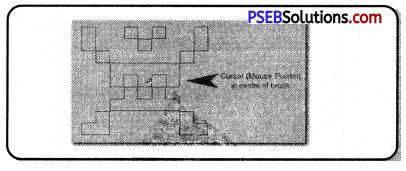
The brush tool is similar to the ordinary brush we use for painting, It shows a similar brush effect on the Canvas. We can work in various widths and textures with the help of Brushes. Widths are controlled by the brushes and the Size Tool together; textures are controlled by the brushes.

Shapes
In the Shapes Gallery several tools like Rectangles, Rounded Rectangles Ellipses and Freehand Polygons, the Line Tool and the Curved Line Tool can be seen. There are number of other shapes such as arrows, speech balloons, various stars and others are also Shapes included.
PSEB 6th Class Computer Notes Chapter 5 MS Paint Part-2 6
We can open the Shapes Gallery by clicking the down arrow under the Shapes picture and click the shape we want to draw.

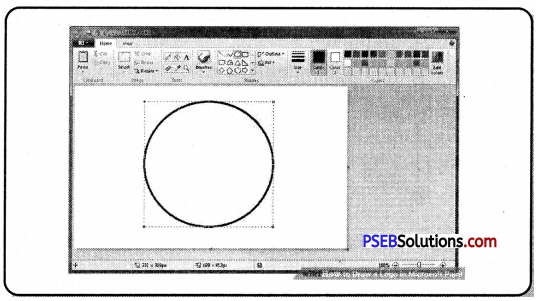
  • Straight Lines: Straight lines can be drawn while the left mouse button is pressed and will usp Color 1, those drawn with the right button will use Color 2. Line will be perfectly straight, If we hold down the Shift key while drawing a line. Ellipses, Rectangles, Circles and Squares: If we want to draw an exact shape such as a square or a circle, hold the Shift key while we draw.
  • Curved Lines: Click the Curved Line button to draw a curve. Click the Outline button and choose Solid Color or a texture of your choice. Then click under the Size picture and choose a line thickness.
  • Freehand Polygons: To draw a freehand polygon, click the Polygon button in the gallery. Hold a mouse button down and draw the first line of the polygon. Then release your mouse button and click where you want the next line to end. Keep clicking end points until you want the last line to finish the shape, then double click.

PSEB 6th Class Computer Notes Chapter 5 MS Paint Part-2

The Size Tool
This tool becomes active only after we choose either a Brush or a Shape.
After selecting our Brush or Shape we will find the down arrow under Size Tool and can choose a line thickness. The line thicknesses offered varies according to the brush we have chosen.

Colors

  • The Color section of the ribbon has three parts: Boxes; showing the active colors – Color 1 and Color 2.
  • Color Palette .
  • Edit Colors button.

1. Color Box:
Color 1: Color 1 is the Foreground Color and is always black when we open Paint.
Color 2: Color 2 is the Background Color and is always white when we open Paint.

2. Color Palette: The two top lines of the Color Palette show all the colors available. Whenever we are making a picture. The line of blank squares at the bottom shows those colors we have edited during our work. Once Paint is closed, the edited colors vanish away.

3. Edit Colors: The Edit Colors button takes us into the Edit Colors dialog box. We can click any color on an extended palette and click the Add to Custom Colors button.
PSEB 6th Class Computer Notes Chapter 5 MS Paint Part-2 7
Here only one color will be added to the squares under the palette. To add more colors, we must return to the dialog box and add them one at a time.

View Tab Ribbon
The following section explains the View Tab Ribbon. It has three main options: Zoom, Show or hide and Display.
PSEB 6th Class Computer Notes Chapter 5 MS Paint Part-2 8

Zoom
Zooming in and out can be used alone or in conjunction with the Zoom Tool on the Ribbon or the slider on the Status Bar. Zoom in and Zoom out tools can be clicked repeatedly to get a closer or more distant view. The 100% option brings us back to a normal view of the picture.

Show or Hide
This portion of the View Tab Ribbon includes:

  • The Show or Hide option for the status bar. The status bar is very useful while drawing pictures precisely.
  • Gridlines are convenient if we want to align shapes accurately
  • Rulers can be turned on or off as per our requirement.

Display

  • On the Display section, we can click for Full Screen View. We can also get a Full Screen View by hitting Fll. We can come back to a normal view by pressing the Esc key.
  • Thumbnail: Thumbnails are active only when we are zoomed in. It helps us see how changes we have made are affecting our picture in a normal view.

PSEB 6th Class Computer Notes Chapter 3 Basics of Working with Computers

This PSEB 6th Class Computer Notes Chapter 3 Basics of Working with Computers will help you in revision during exams.

PSEB 6th Class Computer Notes Chapter 3 Basics of Working with Computers

Introduction
A computer is a combination of hardware and software. We can say that a computer is a machine in itself. There are always some rules which should be followed to work with a machine. Similarly if the user has to work with a computer he must have basic knowledge of working, with computers.

Operating System
Operating system is a system software without which a computer cannot work. IT acts as an interface between the hardware and the user. Each computer has an operating system installed on it. Operating system is displayed in the form of screens, menus, dialogue box, icons and widgets etc.

Definition of Operating System

  • An operating system is an interface between a computer user and computer hardware. It makes computer hardware work by controlling all the internal processes of the computer.
  • There are many types of operating systems. Each operating system is developed for different types of machines. Each operating system has a different set of commands and it understands the machine architecture very well.

Windows
Windows is an operating system developed by Microsoft. It is a graphical user interface. It means it is easy to work with pointing devices such as mice in windows. Most of the computers in this world are using windows operating systems. Everything is displayed in a rectangular frame on the screen in this operating system. That is why operating system is named as windows. It is the most popular operating system in the world.

DOS
DOS stands for Disc Operating System. This operating system is also developed by Microsoft. It is a character user interface operating system. This operating system is not very powerful. The user types commands to instruct the computer. This operating system was used on computers with small memory and low speed hardware. The user has to remember a lot of commands to work in it. That is why it was difficult to work in this operating system. Also the user cannot do a variety of work simultaneously in this operating system.

Android
The Android Operating System is one of the latest operating systems in digital word. It is the operating system which is used in mobile phones. This operating system was developed by Google. This operating system is developed for devices which have touchscreen in them. It provides a very beautiful and convenient interface which can be used by finger touch. The user can do the tasks like pinching, swiping and typing. Now the Android operating system is also used in televisions, cars , wrist watches and many other digital devices. Each of these devices have different user interfaces.

PSEB 6th Class Computer Notes Chapter 3 Basics of Working with Computers

Starting Computer System
The first task to work with an operating system is to make it work. This process is called starting the computer system. To start a computer system is not a difficult task. It is as simple as to start any other machine.

Powering on the Computer System
To start a computer it must be switched on first. Each computer system has a power button on its system case. The user has to press that power button to switch on the computer system. Similarly there is a power button on the monitor also. If the monitor is not powered on then the user has to switch on the monitor.
PSEB 6th Class Computer Notes Chapter 3 Basics of Working with Computers 1
After switching on the computer, the computer starts to place the operating system in its memory. This process is known as booting. This process takes some time depending on the memory and the hardware attached to the computer system. After the booting process screen is displayed on the monitor.

Logging-in
After the booting process the initial windows screen is displayed. This screen provides the opportunity for the user to connect to the main operating system. This process is known as login.

On the screen all the users are displayed which are created on this computer. To login to the screen the user must know who is username and password.

  • To Login to the computer , click on the username.
  • Windows will ask to enter the password for you.
  • Type in the password of that username.
  • Windows will let you in.
  • It will display the next screen which is called desktop.

Desktop and its Components
When the user logged into the Windows operating system, he is taken to a screen. This screen is known as the desktop of the computer. It is basically a dashboard of a computer system. All the operations are performed from this screen on. It has various parts. The parts of a desktop are discussed below.
PSEB 6th Class Computer Notes Chapter 3 Basics of Working with Computers 2
Desktop

Desktop has following three parts:

  • Icons
  • Taskbar
  • Shortcut

PSEB 6th Class Computer Notes Chapter 3 Basics of Working with Computers 3

Icons
Icons are the small pictures on the desktop. These icons represent a file or a program or folder on the computer. The user has to click on this icon to open.dat file or program. The following types of icons are available on Windows desktop.
PSEB 6th Class Computer Notes Chapter 3 Basics of Working with Computers 4

1. My Computer: This icon is used to assess the hard disc of the computer. This icon opens a window on the computer screen which displays all the hard disks attached to the computer and other removable media such as pen drives or CDs. The user can work in this window.

2. Network: This icon is used to connect to the network location attached to this computer system. This icon is used when the computer is connected to a local area. This icon displays icons of all the computer systems which are connected to users’ computers through Local area networks. The user can go to the other computer and work on files.

3. Recycle Bin: Recycle Bin is a folder which works like a dustbin. In this folder contains all the deleted files, folder, icons on the computer. When anything is not required on the computer system the user can delete that item. That item is shifted to the recycle bin folder. If the user deletes an item accidentally he can restore that item from the recycle bin.

4. Users File: This icon is used to assess the current user data. Thus it can hold all the default locations for the different types of files. It may include my documents, my pictures, my videos desktop etc. The name of this icon changes as per the user logged in.

PSEB 6th Class Computer Notes Chapter 3 Basics of Working with Computers

Shortcuts
A shortcut is to reach the original file. A shortcut represents a link to the program file folder or any other item on the computer. It is an easy way to assess that item. The program can be opened using that shortcut. If the shortcut is deleted then the original program is not deleted or removed from the computer system. The user can create many shortcuts for a single program or file. The shortcut icon is identified by a small Arrow on a normal icon.
PSEB 6th Class Computer Notes Chapter 3 Basics of Working with Computers 5
Shortcut

Wallpaper
Wallpaper is an image which is displayed behind the desktop screen. It is also called a desktop background. The user can place a screen as per his requirement. This screen can be a picture colour or pattern. There are some preloaded wallpapers available in the Windows operating system. The user can change the wallpaper as per his requirement.

The following steps are used to change a wallpaper.

  • Right-click on wallpaper displaying on Desktop.
  • Choose the “Personalize” option from the popup menu.
  • A new window will appear.
  • Select the required theme from the window. We can alternatively click on the “Desktop wallpaper” option from the bottom and choose the wallpaper.

Taskbar
Taskbar is located at the bottom of the screen. This bar is a part of the Operating System. It allows us to start a program using the Start menu. This bar always remains visible during working in any application. We can navigate through Active programs using the taskbar. The area on the right side of the taskbar is called “Notification Area”. This area allows us to check date and time, items running in the background etc. The taskbar was first introduced with Microsoft Windows 95 and is found in all subsequent versions of Windows. We can have a look of taskbar and it’s all parts as under:
PSEB 6th Class Computer Notes Chapter 3 Basics of Working with Computers 6
Taskbar

All these parts of the taskbar are having their own functions. Let’s discuss the use of each one of them. It has a logo of windows on it. It is the first item on Taskbar.

Its icon is:

  • Start Button: We can start any application and program with the help of the Start button.
  • Quick Launch Bar: This section of the taskbar enables us to launch
    programs without locating them from the Start menu. It is located next to the Start button.
  • System Tray: It is located at the right side of Taskbar. It contains miniature icons for easy access to system functions such as fax, printer, modem, volume etc.
  • Notification Area: This area is a part of the taskbar that provides notifications and status of devices. It can also be used to display icons for system and program features that are not on the desktop.
  • Clock: At the end of taskbar, Clock is displayed where Current Time and Date can be seen. We can change Time and Date by clicking on it. It requires Administration access to change the Time or Date.
  • Active Programs: This area of taskbar is between quick access bar and System Tray area. In this area of taskbar, all the active programs appeared as an icon and we can easily navigate among them.

Working with Windows Applications
Microsoft Windows 7 provides some of the inbuilt applications which are used for different purposes. These applications are the most basic applications and each one is of a different type. Let’s discuss some of these applications.

Notepad
This is a basic text editor of Microsoft Windows. This is mainly used to type character data. It is the most simple application for creating files with text data only. This application is mainly used for writing codes (Source Files) of programming languages like HTML, Java etc.

Running Notepad

  • Start → All Programs → Accessories → Notepad
    Or
  • Click on the start button and type “Notepad ” in the search bar. Click the Icon from the list and press enter key.

Wordpad
This is a Rich Text Format word processor. We can create a document with formatting using this application. This application can be used to write letters or to create documents with texts data only. Graphics like charts, pictures, clip-art etc. cannot be inserted in it.

Running WordPad

  • Start → All Programs → Accessories → WordPad
    Or
  • Click on the start button and type “WordPad” in the search bar. Click the Icon from the list and press enter key.

Paint
This is inbuilt graphical applications of Microsoft Windows 7. We can create drawing or other basic graphical objects using this application. It is also known as MS Paint. MS Paint has several tools for drawing and colouring. We can edit an existing picture also using this application.

Running Paint

  • Start → All Programs → Accessories → Paint
    Or
  • Click on the start button and type “Paint” in the search bar. Click the Icon from the list and press enter key.

Calculator
This application of Microsoft Windows 7 is used to do calculation related work. We can use this application as we use a real calculator. Its layout and buttons are also similar to real calculators. We can perform calculations up to 16 digits using this application.

Running Calculator

  • Start → All Programs → Accessories → Calculator
    Or
  • Click on the start button and type “Calculator” in the search bar. Click the Icon from the list and press enter key.

Using Run Box
Run box allows the user to open a program by name. This option of windows is very useful for fast opening of programs. Instead of navigating through menus, we can directly type the name of the program to run. Each program exists in the computer’ as an executable file. For example, MS Paint is named as “pbrush”, Notepad as “notepad”, WordPad as “Wordpad” and Calculator as “Calc”. We must write the correct name of that program which is to start. We can also start any file by typing it’s full path. The picture below shows how the Run box looks like in Microsoft Windows 7.

To open the Run Box in microsoft windows 7, we can use the following steps:
Press Window
PSEB 6th Class Computer Notes Chapter 3 Basics of Working with Computers 7
button + R together.
Or
Click on the start button and search for “Run”. Click the Icon from the list and press enter key.

PSEB 6th Class Computer Notes Chapter 3 Basics of Working with Computers

Search Box of Start Menu
We can use the Search Box of Microsoft Windows 7 to search files or programs of computers. It can find given file from hard drive. It is located at the bottom of Start Menu of Windows 7. If this bar is missing from the start menu then we can re-enable it from Control Panel. The Search Box of start menu looks as given in the picture bellow.
If this part of start menu is missing then we can use following steps to show Search Box.

Steps to show “Search Box”

  • Open the Start menu and click “Control Panel.”
  • Click “Uninstall A Program” under Programs.
  • Click “Turn Windows features on or off.”
  • Click on the checkbox named ‘Window Search”.
  • Click “OK” to save your changes.
  • Search Box will start showing in Start Menu after restarting your computer.

Shutting Down Computer System
When the user completes its work on the computer system it is necessary to shut it down. The process of shutting down a computer system is as simple as starting it. All the tasks are performed by the computer system itself to shut it down. The user has only to start the procedure. Shutting down a computer is necessary to avoid the data loss. When the computer is in workable condition many files have been opened by it. The process of shutting down closes all those files, saving their data and returning them back to their inactive state.

Windows have given commands to shutdown the computer system. These commands are selected from the start menu of the window.

Following steps are used to shutdown a window based computer.

  • Click on the start button.
  • Click on the arrow available with the shutdown button.
  • It will display many options such as sleep shutdown log of restart lock switch user.
  • Window will start the process as per the options selected.

The detail of these options are given below:

Sleep:
This option of Power Off menu can be used when we want to leave a computer for some time. During this mode, the power of Monitor/LCD gets OFF and all your data is kept safe. When we put a computer into sleep mode then its power remains ON and its power light starts blinking. This blinking Red-Colour LED on the CPU shows that the computer is in sleep Mode. We can press the power button to resume the computer from this mode.

Shut Down:
This option of Power menu can be used when we have finished all our work. When we shut-down a computer, all parts of computer systems are turned off and no power remains active in the Computer System. We can switch off the main power-supply of the computer when it is shut down. This process can take some time and we must wait till it is over. This process may take time according to the size of data being used and number of programs currently running.

Log Off:
Windows 7 allows us to access a computer differently among users. We can keep our data secure from other users with the help of user accounts in it. If we have finished our work and want to leave a computer but another user is there to access the same computer for own work in a different user account then we can use the Log-off option of Power Menu.

Restart:
This option of power menu can be used when any new program is installed or any updation in the system is done. Sometimes when a new device or hardware is attached to the computer, it is required to restart our computer. In such a case, we can use the restart option of the Power menu to shut down our computer and start it again. When the restart button is pressed then the computer automatically gets started after being shut-down.

PSEB 6th Class Computer Notes Chapter 2 Computer Components

This PSEB 6th Class Computer Notes Chapter 2 Computer Components will help you in revision during exams.

PSEB 6th Class Computer Notes Chapter 2 Computer Components

Introduction to Basic Components of Computer System:
Computer is a device which gets input, processes it and gives output to the user. Input processing and output are called basic tasks of a computer system. For doing these tasks computers need various components. For this computer needs Standard Input Output devices and a Processing Unit.

Standard Input devices include keyboard and mouse. Both of these devices are necessary for a computer. If the keyboard is not attached to the computer, the computer will show an error message at the time of booting. The keyboard is used to enter text messages and the mouse is a pointing device. The most common Output device used in computers is a monitor. It is required to see the result of our work.

The combination of these systems is called the Standard Input Output unit.
PSEB 6th Class Computer Notes Chapter 2 Computer Components 1

How Computer Works?
The process of processing the data is called the processing cycle of a computer. It is the way of processing within a computer system.

Three steps are involved in this cycle.
1. Input: This part is related with input of data and instruction. Computers cannot work without proper in. To enter the necessary data and instructions in the computer input unit is required. Man can enter the data and instruction in its own language and that is converted into computer languages by this input unit.

There are many types of input devices used for input. Keyboard is the most common input device, used to enter textual data. The second common device for input is the mouse. This device is used to point a special part on the screen or to select a command your mouse pointer. The other common devices which are used for input are microphone touch screen scanner etc.

2. Processing: Processing is the process of acting according to given instructions. This is the main task done by computer as it gets instructions from the computer. The main aim of Computer is to work as per the given instructions. This task is done by the processor of the computer. The processor is just like the brain of a human being. This processor is also known as the Central Processing Unit.

3. Output: After processing the data is converted into some information. The user of the computer needs that information from the computer as its result. This result is shown to the user using output devices. The most common output device is a monitor. The other output devices are speaker, printer, plotters.
PSEB 6th Class Computer Notes Chapter 2 Computer Components 2

PSEB 6th Class Computer Notes Chapter 2 Computer Components

Block Diagram of Computer:
A block diagram of a computer is a Graphical representation of various steps involved in working of a computer. The main parts shown in this block diagram are input unit, processing unit and output unit. The processing unit is divided into three parts namely memory unit, control unit and arithmetic logic unit.
PSEB 6th Class Computer Notes Chapter 2 Computer Components 3

Parts of Central Processing Unit
The Central Processing Unit of a computer system is divided into three parts.

  1. Memory Unit
  2. Control Unit
  3. Arithmetic and Logical Unit

PSEB 6th Class Computer Notes Chapter 2 Computer Components 4
1. Memory Unit: This unit is also known as storage unit. This unit holds the data and instruction in it. It can store data and instruction temporary and permanently. Many types of memories are used in this unit. Type of memory is used for special purposes. These memories vary in size, storage capacity nature of operation, speed and cost.

2. Control Unit: Control unit is meant for controlling all the activities of the computer. This unit works as the brain of a computer. It performs all the operations given in the form of instructions. It also controls the functioning of other components of the computer. It controls both input and output units also.

3. Arithmetic and Logical Unit: This is the third part of the Central Processing Unit. This unit is related to performing all the arithmetic and logical operations. A lot of calculations are done by computer in each type of work. All these calculations are done by this unit of CPU. Part of Central Processing Unit is integrated within the processor.

Types of Computer Memories
Computers can store data in many ways. This is possible due to the use of different types of memory in computers.

Computer memory can be classified into two types.

  1. Primary Memory
  2. Secondary Memory

PSEB 6th Class Computer Notes Chapter 2 Computer Components 5

Primary Memory:
Primary memory is also called main memory. It is directly accessible by the Central Processing Unit of the computer. All the instructions and data are placed in this memory before processing. This memory is also known as main memory.

Primary memory is of two types.

  1. Random Access Memory
  2. Read Only Memory

1. Random Access Memory: This memory is also known as RAM. This memory is very fast. All the data and instructions are stored in this memory when the computer is working. It is a volatile type of memory. It means that when the computer is switched off its contents gets destroyed. This memory cannot store the data permanently. But without this memory the computer cannot work.

2. Read Only Memory: It is also known as ROM. It is a permanent type of memory. This memory is placed on computers and other electronic devices in the form of microchips. The ordinary user cannot write in this memory. He can only read from this memory. That is why this memory is called Read Only Memory. Normally this memory stores the data and information which is required to start a computer. Only users cannot write in this memory. Only the manufacture of this memory can write in it.

PSEB 6th Class Computer Notes Chapter 2 Computer Components

Secondary Memory
Secondary memory is also known as auxiliary memory or external memory. This memory is used to store data and instructions for a long time. This memory is a non-volatile memory. The storage capacity of secondary memory is higher than primary memory. This memory is not directly accessible from the CPU. Different types of memory storage devices are used in this type such as hard disk, CD, DVD, pendrive, Magnetic tape etc.

Categories of Computer:
The computers can be categorised according to their speed, memory processing capability, storage capacities and generations.

There are four main types of computer.

  1. Micro computer or personal computer
  2. Mini computer
  3. Mainframe computer.
  4. Supercomputer

PSEB 6th Class Computer Notes Chapter 2 Computer Components 6
1. Micro Computer or Personal Computer: Micro or Personal Computers are the most common computers. These are the computers which are used in homes, schools and offices. These computers are small in size and the cost of this computer is very less. These computers can be afforded by small businesses, small schools and individuals also. The computer on which we work falls in this category. Examples of computers of this category are desktop computer, laptops, palmtops, tablets, mobile phones etc.

2. Mini Computer: This type of computer has more processing capabilities than a microcomputer.
These computers are also larger in size.
These computers are used by multiple users at a time. The main features of these computers is highest storage capacity sharing of resources and high processing speed. Micro computers are mainly used as small or mid range servers. These computers are used in large businesses, large team based companies and scientific applications.
PSEB 6th Class Computer Notes Chapter 2 Computer Components 7

3. Mainframe Computer: The processing speed of Mainframe computers is higher than micro and mini computers. These computers are capable of handling large amounts of data within less time. These computers are capable of performing operations on large amounts of data with high processing speed. Mainframe computers are used in patience such as government offices, banks etc.
PSEB 6th Class Computer Notes Chapter 2 Computer Components 8

4. Supercomputer: Supercomputer is the most powerful computer invented till now. The processing speed of supercomputers is very fast. It can store a large amount of data. These computers are specially used for complex application. Supercomputers are the most powerful and expensive computers till now. The application areas of these types of computers are weather forecasting climate research, oil and gas exploration and processing of astronomical data.
PSEB 6th Class Computer Notes Chapter 2 Computer Components 9

PSEB 6th Class Computer Notes Chapter 1 Introduction to Computer

This PSEB 6th Class Computer Notes Chapter 1 Introduction to Computer will help you in revision during exams.

PSEB 6th Class Computer Notes Chapter 1 Introduction to Computer

Introduction to Computer:
Computers are used everywhere these days. All the offices, banks, school, colleges use computers for their daily work. Let us try to understand the meaning of computers.

Meaning of Computer:
A computer is an electronic device which gets the data and instructions from the user. It processes the data as per given instructions and gives the result in the desired form. Computer can be defined as:

A computer is an electronic machine that accepts data as input from the user and processes the data under the control of a set of instructions and gives the result as an output.
PSEB 6th Class Computer Notes Chapter 1 Introduction to Computer 1
Literally, the word computer is taken from Latin word compute which means to calculate. So in simple words, we can say that a computer is an electronic device which was made to calculate. Earlier their definition was correct as the main work of the computer was to calculate. Now the computer is doing a lot of work to decide the calculation.

PSEB 6th Class Computer Notes Chapter 1 Introduction to Computer

Uses of Computer:
Following are the uses of computer in Modern Times:

  • We can do mathematical calculations on the computer.
  • We can play games on the computer.
  • We can draw pictures on the computer.
  • We can listen to songs and watch films on the computer.
  • We can use computers to print books and newspapers.
  • We can use computers to book our tickets to travel in trains, buses and airplanes.
  • We can check the arrival and departure time of trains, buses and airplanes with the help of a computer.
  • We can check the weather conditions of any place before travelling.
  • We can print reports, results of our school or time table.
  • We can store our data into a computer for future use.

Applications of Computer
Computers are used in many areas. Some of the application areas of computers are given below:
PSEB 6th Class Computer Notes Chapter 1 Introduction to Computer 2

1. Education: Students and teachers are using computers in their education. Teachers use computers to teach the students and students use computers to prepare their notes making, drawing and making projects etc. The internet is used to search, study material, results, time table and various reports are prepared using the computer. Computers are also used for record keeping, online data, processing etc. Punjab Education Department is using computer on their web portal like www.epunjabschool.gov.in www.pseb.ac.in

2. Entertainment: Computers are a good source of entertainment also. The user can watch movies, listen song and camp. Beautiful presentations can be made on the computer. All the films made in these days use computers for their special effects.

3. Sports: Computers are also used in the sports field. They are used to improve the performance of players to keep data and to evaluate the performance and to display information about various tournaments which will happen in future. Digital scoreboards are also a part of games today. The players can improve their by analysing their record.

4. Communication: Computers have given new ways of communication. The user can make video calls, audio calls, chat using computer data and send email to their friends and relatives. Any type of data can be shared using smartphone, tablet, laptop and computers.

5. Shops: Shopkeepers are also using computers for their various works. They are using computers to manage their stock to generate purchase orders to generate bills to advertise their shop. The use of computers in shops save a lot of time for the shopkeeper and the customer.

6. Hospitals: Hospitals are using computers to maintain patient records and to monitor the health of patients. The medical history of a patient can be stored and communicated by using a computer. Now the doctor is also using a computer to check their patient from a remote place. Computers are also used in Laboratories to do 2x and data analysis.

7. Banks: The hanking system is working by using computers. All types of records of customers are maintained by using computers. Then use a computer to maintain data of accounts withdrawal of money deposit of money, loans etc. Customers can now use e-banking services to do their work from their home. ATMs are totally computer based.

8. Government Offices: Government offices are using computers in governance, bill payment, Income Tax application processing. Most of the government’s work is online these days. The citizens can apply for any government service with the help of using computer and internet from their homes. They can pay to build Taxes and avail other governmental services using the internet.

9. Travel: Computers are also used for travel purposes. The user can book their tickets, get knowledge of some geographical areas, check availability of means of transport, cost, estimation and regional culture etc. The user can also book hotels from their home by using the internet.

Characteristics of Computer
The main characteristics of computer are as given below:
PSEB 6th Class Computer Notes Chapter 1 Introduction to Computer 3
Characteristics of Computer
Speed Accuracy Reliability Diligence Automotion Storage
1. Speed: Computer is a very fast machine. It can do calculation in milliseconds. It can complete days work in seconds. That is why it has reduced human effort.

2. Accuracy: Computer is an accurate machine. It never makes any mistakes. If a mistake is performed in any calculation that is always due to human error. A computer can do any task repeatedly for thousands of times without any error.

3. Reliability: Reliability means the ability of being trusted. A computer is a reliable machine. We cannot doubt the results given by computers because
they are always correct. There is no need of rechecking the results. It gives the same result every time.

4. Diligence: Computer never gets tired. It can to do work for many days or even for years. During this time its efficiency does not decrease and neither it commits errors after long working. In fact, a computer is a hardworking machine.

5. Automation: Automation means to do the work automatically. Computers can be instructed to do the work without any interaction. He can be given the instructions and the computer can do work without asking anything. We just need to start the computer and ask him to do the particular work. After that it will do the whole work without asking anything.

6. Storage: The storage capacity of computers is very large. It can attach many storage devices such as hard disk, pen drive at 17 to it. It can store any type of data such as text, audio, video, animation in it. We can also store the storage capacity of computers. Computers store data for a very long time.

Portable Computing Devices
Portable devices are those devices which can be easily carried from one place to another. Technology has given us many portable devices. Some of them are explained below:
1. Mobile Phone or Smartphone: It is the most common portable computing device used these days. Each one is using their mobile phones these days. Smartphones can do a lot of calculation work and processing.
Their speed is also very fast. Modern mobile phones are equipped with camera large storage capacity and High processing speed.
PSEB 6th Class Computer Notes Chapter 1 Introduction to Computer 4
They can be used in education, business trading, entertainment, gaming etc. Mobile phones are very small devices. It can be carried in our pockets. There are a lot of mobile phones available in the market with different features.

2. Tablet Computer: It is a small computer.
It is mainly known as a tablet. If the battery is used in this tablet. It has a touch screen which is used to give input and get the output. Tablets can be used for many purposes. Most of the students are using tablets in their education at home as well as at their schools.
PSEB 6th Class Computer Notes Chapter 1 Introduction to Computer 5

3. Palmtop Computer: Palmtop computer is a small size computer which can be placed on our palm. This computer has a small screen and small keyboard. It is just like a mobile phone having a keyboard. These computers are not very popular in these days. These computers were used for limited purposes only
PSEB 6th Class Computer Notes Chapter 1 Introduction to Computer 6

4. Laptop Computer: Laptop computer is the most famous computer these days. It is a computer with a big screen and keyboard attached to it. It can be easily taken from one place to another. If the battery is used to give power to the laptop computer. All it had also a touchpad and many other features built in it.
PSEB 6th Class Computer Notes Chapter 1 Introduction to Computer 7

5. Note Book: It is a portable computer. It is smaller than laptop. It is also lighter in weight. It has a battery to work. The battery can be charged again and again. It can be easily taken from one place to another.
PSEB 6th Class Computer Notes Chapter 1 Introduction to Computer 8

PSEB 6th Class Computer Notes Chapter 1 Introduction to Computer

Limitations of Computer:
PSEB 6th Class Computer Notes Chapter 1 Introduction to Computer 9
Computers are capable of doing a lot of work. But, after all this is a machine and unable to do some tasks. These kinds of tasks are considered as limitations of computers.

Some of the main limitations of computer are as under:

  • A computer cannot take decisions by itself.
  • A computer cannot correct wrong instructions.
  • Computer cannot do any work without instruction from the user.
  • It does not have feelings or IQ (Intelligence Quotient)
  • It does not have knowledge and experience like a human being.
  • Computer can not start work until asked.

PSEB 6th Class Computer Notes Chapter 8 Output Devices

This PSEB 6th Class Computer Notes Chapter 8 Output Devices will help you in revision during exams.

PSEB 6th Class Computer Notes Chapter 8 Output Devices

Introduction
Computer is an electronic device which gets input, processes it and give the output. Input is given to computer by input devices. The result which is provided to the user is called output. This output is given to the user using some devices. These devices are known as output devices.

Output Devices:
Output devices are those devices which are used to get output from the computer. These devices display the information into human readable form. These devices are connected to computer using some wires or wireless media. These devices can show the output in text, audio, video are graphic form. There are a lot of output devices available these days.

Uses of output devices: Output devices are used for following purposes:

  • These provide information from the computer.
  • These can be used to get hard copy as well as soft copy.
  • These give the information whether the computer has completed its work or not.

Types of Output Devices
There are many types of output devices available these days. Output devices can be categorized into following categories:

  • Monitor
  • Printer
  • Speaker
  • Headphone
  • Plotter
  • Projector

PSEB 6th Class Computer Notes Chapter 8 Output Devices 1

Monitor:
PSEB 6th Class Computer Notes Chapter 8 Output Devices 2
Monitor is also called visual display terminal. It is used to get soft copy of the output. It is most common output device. It looks like a television screen.
PSEB 6th Class Computer Notes Chapter 8 Output Devices 3
There are different kinds of monitors available these days.

  • Cathode ray tube.
  • Flat panel display

1. Cathode ray tube monitor: These monitors were used in earlier days. These monitors use cathode ray technology to display the information. They look like bulky television sets. The size of these monitors is measured by the diagonal length on the screen. Monitors are available in 15, 17, 19 and 21 inches screens. Initially they were black and white but now colored monitors are also available.

2. Flat panel display monitors: These are the monitors which have a thin display portion. They are reduced in volume, weight and Pi requirement. These monitors can be hung up on the walls. We can see these monitors on calculators, video games, laptop computers etc. These monitors consume less power. Some examples of flat panel display monitors are LCD, LED and plasma.

PSEB 6th Class Computer Notes Chapter 8 Output Devices

Differences between CRT monitors and Flat panel monitors:

CRT Monitor Flat Panel Display Monitors
(i) CRT monitors are big in size. (i) Flat panel monitors are small in size.
(ii) CRT monitors are heavy. (ii) Flat panel monitors are light weight.
(iii) They produce large amount of heat. (iii) Flat panel produce very less heat.
(iv) They use more electricity. (iv) They use less electricity.
(v) CRT monitors are cheaper.
PSEB 6th Class Computer Notes Chapter 8 Output Devices 4
(v) These monitors are costly.
PSEB 6th Class Computer Notes Chapter 8 Output Devices 5

Speaker
Speaker is an output device. Speakers are used to get audio output from the computer. They are connected to the sound card of the computer. Speakers produce audio output in the form of sound waves. Any type of sound can be produced by computer using the speaker.
PSEB 6th Class Computer Notes Chapter 8 Output Devices 6

  • These speakers are required if the user wants to listen songs or watch a movie on a computer. There are many types of speakers available in the market.
  • These ranges from small size to very big size. Normally a set of two speakers is attached to the computer. These speakers are connected to computers using two wires, one for data supply and second for power supply.

Headphone
Headphones are also an output device. These are nothing but smaller versions of speakers. Headphones are also known as earphones. These devices are portable devices. These devices can be plugged into the computer directly or to the speaker attached to the computer. These devices are used when the user alone wants to listen music.

Headphones are similar to the headphones which we use on our mobile phones. They are also available in a variety of models.
PSEB 6th Class Computer Notes Chapter 8 Output Devices 7

Printer:
Printer is an output device which gives a hard copy of the output. The output given by the printer is permanent in nature.
PSEB 6th Class Computer Notes Chapter 8 Output Devices 8
This output can be preserved in the form of paper. There are a lot of printers available in the market. Printer can be colored as well as black and white.

Printer can be divided into three main categories:

  1. Dot Matrix printer
  2. Inkjet printer
  3. Laser printer

1. Dot Matrix printer: As the name suggests, these printers print any character by combination of various dots. These printers are not very much costly. The speed of these printers is also slow. The printing quality of this printer is not very good. These produce a lot of sound while working. The resolution of printing is also very low. These printers fall in the category of impact printer. These printers are not used in large quantities these days.
PSEB 6th Class Computer Notes Chapter 8 Output Devices 9

2. Inkjet printer: Inkjet printer can be called a non-impact version of Dot Matrix printer.
Similar to Dot Matrix printer inkjet printer also print the text or graphics in the form of small dots. These printers can be colored printers. The printing cost of these printers is very low. The main advantage of these printers is that they do not produce sound while working. These printers are faster than Dot Matrix printers. These printers have small dots of ink on the paper. That is why they are called inkjet printers.
PSEB 6th Class Computer Notes Chapter 8 Output Devices 10
3. Laser printer: Laser printers are the most commonly used printers these days. They use laser technology to print on paper. This printer is black and white as well as colored. The speed of printing in this printer is very high. Their printing quality is also very high. These printers do not produce any sound while working. This printer is costly but the per paper cost is not very much.
PSEB 6th Class Computer Notes Chapter 8 Output Devices 11

Plotter
Plotters also give hard copies of output. These are similar to the printer but plotters are used to print on big sized paper or canvas. Plotters are used in computer aided designs. These are used for some specific areas of application such as engineering design graphical design etc. Plotters use pens for drawing pictures in the media. The most common use of plotter is the big banners which we see in the market. These banners are printed with the help of plotters. Plotter can print black and white as well as color. Plotters are very costly devices. They cannot be awarded by single person.

These are of following types:

  • Drum Plotter
  • Flatbed Plotter
  • Inkjet Plotter.

1. Drum Plotter: In drum plotter, a drum is used to rotate in vertical motion. It contains one or more Horizontal pen holders. These pens are used to draw lines on the paper. Drum and pen draw the design by working together simultaneously. Each pen is program selectable. Pens use different colours to draw.

2. Flatbed Plotter: It draws on flat paper. This paper is spread on flat bet table. Paper is not rotated. The pen moves as per the drawing. It contains many pen holdings of different colours. The plot area is as per bed area. It can range from A4 to 50 feet or more.

3. Inkjet Plotter: These plotters uses inkjet technology instead of pens. They can draw in colour. These plotters are usually faster than other types of plotters.
PSEB 6th Class Computer Notes Chapter 8 Output Devices 12

PSEB 6th Class Computer Notes Chapter 8 Output Devices

Projector
Projector is an output device which is used to get visual output. They can be connected to computers.
The projector gives the output big in size. The projectors are mainly used to display something to a large number of people. They are used in office meetings or in classroom teaching by the teachers.
PSEB 6th Class Computer Notes Chapter 8 Output Devices 13
Other Output Devices

Example:

  • Digital camera
  • Pen Drive
  • CD/DVD
  • Modem
  • Fax

Difference Between Input and Output Devices
Following are the differences between input and output devices:

Input devices Output devices
(i) Input devices are used to give input to computers. (i) These devices are used to get output from the computer.
(ii) Data and instructions are given as input using these devices. (ii) After processing information is taken using these devices.
(iii) Input devices are available in large categories. (iii) The categories of availability of in output devices is less.

PSEB 7th Class Computer Notes Chapter 3 Microsoft Word Part-I

This PSEB 7th Class Computer Notes Chapter 3 Microsoft Word Part-I will help you in revision during exams.

PSEB 7th Class Computer Notes Chapter 3 Microsoft Word Part-I

Introduction:
Word processing is the most commonly used software in computers, with the help of this, we can create documents, save the documents, print the documents and also we can edit the already created document. Let’s learn about these features of word processing.

Wort Processing:
We make a lot of mistakes when typing a document with the help of typewriter, which we can’t correct again, we have to type the document again to make it better, but word processing gives us a facility through which we can easily correct our mistakes in typed documents without having to retype them.
Word processing is a process by which we can create, save and print any type of document in a computer and it can be used anytime in the future and can be edited if required.
The software that is used for word processing process called word processor. For example: MS Word, NotePad, WordPad and word perfect all are word processors.

Features of Word Processing:
Following are the features of word processor:

  • A word processor provides an easier and faster method to type the text.
  • It offers so many styles, size, color, effects for text.
  • Using a word processor, you can apply editing operations to the text.
  • It stores all your documents for. future use.
  • It allows you to insert photos, music, background etc. into the document.
  • It can move any document from one place to another with the help of cut, copy, and paste option.
  • You can delete, edit, update the data in the pre-created document at any time.
  • It helps us to find and correct mistakes in the typed text.
  • It also provide the facility to check the grammar mistakes in the typed text.

PSEB 7th Class Computer Notes Chapter 3 Microsoft Word Part-I

Word Processing – Software:
A word processor is a software program capable of creating, saving and printing typed documents. Today, the word processor is one of the most widely used software programs on the computer, it can create different types of files and to create these files requires different software such as WordPad, Microsoft Office, Microsoft Word, etc are some examples of word processors.

Today in this lesson we will read about MS Word word processor.

Microsoft Word
Microsoft Word is a word processor software program published by Microsoft Company also called MS Word, WinWord, Word. Microsoft Word provides advanced features for creating and saving different types of documents. For example, we can create letter typing, emails, reports, tables, etc. in Microsoft Word.
PSEB 7th Class Computer Notes Chapter 3 Microsoft Word Part-I 1

Some of the basic applications of MS Word are as follows:

  • Creating and saving a text document.
  • Editing and formatting existing documents.
  • Make the document attractive with the help of different styles, size, colors and effects.
  • Creating graphical documents with images, charts, smart art etc.
  • Identify grammatical and spelling errors in the document.

Features of Microsoft Word
Some of the special features of Microsoft word are as follows:

  • MS Word allows us to include text anywhere in the document.
  • We can delete any word, line or page from the document as easily as we erase the words written on paper.
  • We can cut and copy the text and paste it anywhere in the same document or any other document.
  • MS Word allows us to set the page margin and page size according to our needs.
  • We can add Bold, Italic and Underline effects to the text.
  • We can change the size, style, color of the text.
  • We can add header on the top of pages and footer on the bottom of the page.
  • We can add pictures, chart, graphs and smart art.
  • We can convert the text into tables.
  • You can also set different margins in a document and also determine the different locations to start a paragraph.
  • It also provides us with the facility of macro. This is a list of many commands with which our time is saved.
  • MS Word also provides us the facility of spelling checks. It shows a red line below the words that are incorrect.
  • MS Word also provides us the facility of grammar checks.
  • It also provides Find and Replace option.
  • It also provides the facility of dictionary with which we can find many words with the same meaning and use them in our document.

Starting MS Word
The steps to start MS Word are as follows:
1. First, click the Start button
PSEB 7th Class Computer Notes Chapter 3 Microsoft Word Part-I 2
on the desktop

2. Now click on All Program from the popup menu as shown in the picture below.

3. Now click MS Office! MS Word.
PSEB 7th Class Computer Notes Chapter 3 Microsoft Word Part-I 3
Or
Type “Word” in the search bar as shown in the picture below and press Enter key from the keyboard
PSEB 7th Class Computer Notes Chapter 3 Microsoft Word Part-I 4

Components of MS Word Window
When you start the Word application then a window opens on the screen as shown in the picture below. Let us understand the different important parts of this window.
PSEB 7th Class Computer Notes Chapter 3 Microsoft Word Part-I 5
1. File Menu: This option is available in the upper left corner of the window, it contains many of the following commands:
(a) Home: It has options like font color, font size, font style, alignment, bullets, line spacing, etc. All the basic elements that someone might need to edit their document are available in the Home option.
PSEB 7th Class Computer Notes Chapter 3 Microsoft Word Part-I 6
(b) Insert: Tables, sizes, images, charts, graphs, headers, footers, page numbers, etc. are available in insert options.

(c) Design: The template (pre-created document design) or the design in which you want your document to be created can be selected under the Design tab.

(d) Page layout: Under the Page Layout tab we can find the options such as Margins, Orientation, Columns, Lines, Indentations, Spacing, etc.

(e) Reference: This tab is most useful for those who are preparing thesis or writing books or working on a long document. Footnote, table of content, bibliography, captions etc. options can be found under this tab.

(f) Review: Spell check, grammar, thesaurus, word count, language, translation, comments, etc. can all be tracked under the Review tab.

2. Quick Access Toolbar: Collection of buttons that provide one click access to commonly used commands such as Save, Undo or Redo. You can also customize this according to your preference.

3. Title Bar: This bar window is at the top of the screen and the name of the open document appears on it. Above this bar are three control buttons:
PSEB 7th Class Computer Notes Chapter 3 Microsoft Word Part-I 7
minimize, maximize, close button

4. Ribbon: The ribbon consists of three organized commands:
PSEB 7th Class Computer Notes Chapter 3 Microsoft Word Part-I 8
(a) Tabs: These appear on the top of the ribbon and contain groups of related commands. For example: home, insert, page layout ribbon, references, mailings Review etc. all are tabs. We have already read about them.
(b) Group: They handle related commands; the name of each group appears below the group on the ribbon. For example, a group of commands related to fonts (Font Group) or a group of commands related to alignment (paragraph group), etc.
(c) Commands: Commands appear in each group as described above. For example: Cut, Copy, Paste, Font Size, Color, Alignment etc. are all commands.

5. Ruler: There are two rulers in the word window – a horizontal ruler and a vertical ruler. The horizontal ruler appears just below the ribbon and is used to set margins and tab stops. The vertical ruler appears on the left side of the word window and is used to determine the vertical position of the page.

6. Help: The help icon can be used whenever you want to get help related to MS Word. It provides excellent tutorials on various topics related to Word.

7. Document Area: Right below the ruler, there is a large space called the text area. This is the area where we type our document; the blinking line in this area is called the insertion point which indicates that your typing will start from this place.

8. Status Bar: It displays the information of the document as well as the position of the insertion point. From left to right, this bar contains information on the total number of pages and words, document language, etc.

9. Dialog Box Launcher: This appears as a very small arrow in the lower-right corner of most groups of the ribbon. Clicking this button opens a dialog box or task pane that provides more options about the group.

10. View buttons: At the bottom right of the window screen is a set of 5 buttons that allow us to view the document in a different view.
PSEB 7th Class Computer Notes Chapter 3 Microsoft Word Part-I 9
(a) Prints Layout: This is the default document view in Word. The Print Layout view shows the document as it would appear after printing.
(b) Full-Screen Layout View: This view opens the document to a full screen. This layout helps us to make our document easily readable above the screen.
(c) Web Layout: This view displays a document on the screen the way it will look when viewed in a Web browser if you saved it as a web page.
(d) Out Line View: The outline view shows the document as an outline form.
(e) Draft View: This is the most commonly used view, in this view we can edit our document very quickly and easily.

PSEB 7th Class Computer Notes Chapter 3 Microsoft Word Part-I

Creating a New Document
Follow these steps to create a new document:
PSEB 7th Class Computer Notes Chapter 2 Windows Explorer 1

  • Click the office button and then click File menu
  • Now click on New option from the drop down menu, as shown in the picture.
  • A New Document dialog box will appears on the screen.
  • Click Blank Document option from this dialog box and then Click Create Option as shown in picture.
  • Now a blank document will appear on the screen

Or
You can create a new document by pressing the Ctrl + N keys from the keyboard.
PSEB 7th Class Computer Notes Chapter 3 Microsoft Word Part-I 11
Open an Existing Document
Follow these steps to open an existing document:

  • Click the File tab or Office Button.
  • Click Open option. The Open dialog box appears.
  • As shown in picture below select a document which you want to open and then Click Open button.
  • Now your document will open on the screen.

Or
You can open an existing document by pressing the Ctrl + 0 keys from the keyboard.
PSEB 7th Class Computer Notes Chapter 3 Microsoft Word Part-I 12

Saving a Document
To save a newly created document follows these steps:

  • Click the File tab or Office Button.
  • Click Save option. The Save dialog box appears. As shown in picture below.
  • Now type the name of your document in File name box and then click Save button.

Or
You can also save your document by pressing the Ctrl + S keys from Keyboard Now your document is safe for future use.
PSEB 7th Class Computer Notes Chapter 3 Microsoft Word Part-I 13

PSEB 7th Class Computer Notes Chapter 3 Microsoft Word Part-I

Note:

  • Word processing is a process by which we can create, save and print any type of document
  • The software that is used for word processing process called word processor.
  • MS Word, NotePad, WordPad and word perfect are all word processors.
  • Microsoft Word is a word processor software program, provides advanced features for creating and saving different types of documents.
  • Tabs appear on the top of the ribbon and contain groups of related commands.
  • Group handle related commands; the name of each group appears below the group on the ribbon.
  • The large area at the bottom of the ruler is called the text area. We can type our document in this text area.
  • Text can be viewed on a computer screen before it is printed, errors can be detected and corrected.
  • A dialog box launcher is present in the lower right corner of each group.
  • Word allows us to view the document in 5 different views. Prints Layout. Full screen layout view, Web Layout, Out Line View, Draft view.

PSEB 7th Class Computer Notes Chapter 2 Windows Explorer

This PSEB 7th Class Computer Notes Chapter 2 Windows Explorer will help you in revision during exams.

PSEB 7th Class Computer Notes Chapter 2 Windows Explorer

Introduction:
Windows Explorer is an important part of Windows. It manages files and folders. You can cut, copy, paste, rename and delete your files and folders. Explorer puts your files and folders in the correct order.

There are two types of Explorer:

  1. Windows Explorer
  2. Internet Explorer.

Windows Explorer:
The main function of Windows Explorer is to provide a graphical interface for navigating the computer’s hard disk and associated media. It is used to view, organize and manage the files / folders on the computer’s hard disk. Windows Explorer is automatically launched any time you open a folder in Windows XP.
PSEB 7th Class Computer Notes Chapter 2 Windows Explorer 1
Windows Explorer is also called File Explorer. It is used to view files and folders on our computer. We can open the data, folder and library of the disk in the computer and also search for an item. We can use it to open, delete, rename, copy, move and create new folders.

Opening the Windows Explorer
We can open Windows explorer in many ways. Some of these are as follow:
PSEB 7th Class Computer Notes Chapter 2 Windows Explorer 2
Or
By default, Windows 10 includes a File Explorer shortcut on the taskbar. Its icon looks like a folder. Click or tap on it and File Explorer is opened.
PSEB 7th Class Computer Notes Chapter 2 Windows Explorer 3

Components of Windows Explorer
Components of the windows explorer are files, folders, and drives. With the help of Explorer we can easily find any file or folder.

  • File: File is the smallest unit of data storage.
  • Folders: Folders are used to store related files in one place.
  • Drive: Hard disk storage areas are called drives. For example Local Disk C, D, E, F, and G: drives.

With Windows Explorer we can easily access files, folders and drives. Windows Explorer is divided into following parts.

  • Left Pane: This is called the navigation pane. Here we can see drives, files and folders
  • Right Pane: When a file, folder is selected, its details appear in the right pane.

PSEB 7th Class Computer Notes Chapter 2 Windows Explorer 4
PSEB 7th Class Computer Notes Chapter 2 Windows Explorer 5

  • Forward and Back buttons: Enables you to go to folders you’ve already opened. If you go to a different folder, you can choose the Back button to return to the last folder you accessed.
  • Address Bar: Enables you to go to a different folder in the same Explorer window.
  • Search Box: Allows you to search for subfolders, documents, images, programs, Web pages, and bookmarks in the current folder.
  • Status Bar: Displays information about a selected folder and its contents, such as the total number of items in the folder, the number of items selected and total file size.
  • Ribbon: Enables you to perform layout, formatting, and sharing tasks, as well as how File Explorer displays your files and folders.

PSEB 7th Class Computer Notes Chapter 2 Windows Explorer

Series of Locations:
The folders and drives in the computer, the computer connected to the network and its shared folders, drives and printers are arranged in a tree shape. This sequence is called a series of locations. It contains the following items:
Favorites: The top most folder in this series is the Desktop folder. It contains desktop, downloads and recent place items.
PSEB 7th Class Computer Notes Chapter 2 Windows Explorer 6

2. Library Folder: By default this folder contains four libraries, such as; Documents, music, photos and videos. These folders contain related items; Such as pictures in pictures folder, related videos in video folder, etc.
PSEB 7th Class Computer Notes Chapter 2 Windows Explorer 7

3. Personal Folder: Your personal folder is named after the user name to which you have logged in to the computer and by default it contains the following folders; such as Contacts, Downloads, Favorites, Links, My Documents, My Music, My Pictures, My Videos, Saved Games and Search.
PSEB 7th Class Computer Notes Chapter 2 Windows Explorer 8

4. MY Computer: Disks in a computer; such as C: drive, D: Drive, E: Drive etc. and other connected devices such as Printer, USB, memory stick and camera are attached to the computer, they are visible here.
PSEB 7th Class Computer Notes Chapter 2 Windows Explorer 9

5. Network: If you are connected to a local network, you see other computers and devices in it.
PSEB 7th Class Computer Notes Chapter 2 Windows Explorer 10

6. Control Panel: Control Panel is used to configure hardware and software of computer system and to change settings of computer system.
PSEB 7th Class Computer Notes Chapter 2 Windows Explorer 11

7. Recycle Bin: It contains deleted files/folders or programs.
PSEB 7th Class Computer Notes Chapter 2 Windows Explorer 12

View means how files and folders appear in a computer system. Explorer views show the direction in which files and folders will appear. It has five types of views. These are thumbnails, tiles, icons, lists and details.

  • Small, Medium, Large and Extra Large Icons View: Items in this view are in more than one row and each item appears in the shape of an icon. Each item has a name.
  • Tiles Icon View: Items in this view are in more than one row and each item appears in the shape of an icon. Each item has a name. It contains other information, such as the type of file and its size.
  • List Icon View: Items in this view are in more than one column. Each item has a name and the icon is to the left of the name.
  • Content Icon View: Items in this view appear in the column. Each item is in the shape of an icon. It has a name and type of the file is written below it. Some other properties such as modification date and size below it are also visible, By default this view is used for search.
  • Detail Icon View: Each item appears as a table row. The first column contains the name of the item in the form of a small icon and the rest of the column lists its properties such as its size and the date and type of modification.

PSEB 7th Class Computer Notes Chapter 2 Windows Explorer 13

PSEB 7th Class Computer Notes Chapter 2 Windows Explorer

Change Display for a Single Folder

  • Open File Explorer.
  • Click the View tab at the top of the window.
  • In the Layout section, select Extra large icons, Large icons, Medium Icons, Small icons, List, Details, Tiles, or Content to change to the view you want to see.

There are many different types of files you can use. For example, Microsoft Word documents, digital photos, digital music, and digital videos are all types of files. When you use different applications, you’ll often be viewing, creating, or editing files. Files are usually represented by an icon. In the image below, you can see a few different types of files.
Windows uses folders to help you organize files. You can put files inside a folder, just like you would put documents inside a real folder. In the image below, you can see some folders on the desktop.

Selecting the Items
Usually before doing any work on a file or folder such as opening a file, closing a file, deleting file, copy a file etc. we have to select it. There are different ways to select a single file/folder or multiple files/folders.
1. Selecting a Single Item: If more than one item is available and you want to select one of the items in it, it can be selected by clicking with the mouse on that file.

2. Selecting More Than One File ; There are a few ways to select more than one file at a time:
(a) If you’re viewing your files as icons, you can click and drag the mouse to draw a box around the files you want to select. When you’re done, release the mouse; the files will be selected. You can now move, copy, or delete all of these files at the same time.
(b) Selecting All Items: If you want to select all files in a folder at the same time, open the folder in File Explorer and press Ctrl+A or click “Select all” option from the “Select” group on the Home tab. All of the files in the folder will be selected.
(c) Select items using the Shift key: To select a group of files from a folder, click the first file, press and hold the Shift key on your keyboard, then click the last file. All of the files between the first and last ones will be selected.
(d) Selecting an item using (Ctrl key): To select specific files from a folder, press and hold the Control key on your keyboard, then click the files you want to select.

3. Reverse selection: To reverse the selection, select the “Invert Selection” option in the Edit menu.

Creating a Folder
If you want to create a new folder, it is created in the current location. Here are some ways to create a folder:

  • Open the File explorer, click on the “New Folder” button option.
  • The new folder will appear. Type the desired name for the folder and press Enter.

Or
Press the Ctrl + Shift + N keys together from the keyboard. The new folder will appear. Type the name of the folder and press Enter key.
Or
Right-click on a blank space, click “New” ⇒ “Folder” in the context menu. The new folder will appear. Type the name of the folder and press Enter key.
PSEB 7th Class Computer Notes Chapter 2 Windows Explorer 14
Or
PSEB 7th Class Computer Notes Chapter 2 Windows Explorer 15

  • Place the cursor where you want to add your folder.
  • In File Explorer, click on the Home menu item.
  • From the Home riibbon, click on the New folder button.
  • Enter the name of your new folder and press enter key.

Re-naming the Item
You can change the name of any file or folder. Here are the steps to rename an item:

  • Click the file or folder, wait about one second, and click again. An editable text field will appear.
  • Type the desired name on your keyboard and press Enter. The name will be changed.
    Or
  • You can also right-click the folder and select “Rename” copy option from the menu that create shortcut appears. An editable text field will appear.
  • Type the desired name from , keyboard and press Enter. The name will be changed.

PSEB 7th Class Computer Notes Chapter 2 Windows Explorer 16

Delete a File or Folder
If you no longer need to use a file, you can delete it. When you delete a file, it is moved to the Recycle Bin. If you change your mind, you can move the file from the Recycle Bin back to its original location. If you’re sure you want to permanently delete the file, you will need to empty the Recycle Bin.

Following are the Steps to delete file/folder:

  • Select the file or folder you want to delete.
  • Press the Delete key from the keyboard. A message will appear asking for deletion.
  • Click on “Yes”. Item will be deleted.

PSEB 7th Class Computer Notes Chapter 2 Windows Explorer 17
Or

  • Click and drag the file to the Recycle Bin icon on the desktop.
  • To permanently delete the file, right click the Recycle Bin icon and select “Empty Recycle Bin”. All files in the Recycle Bin will be permanently deleted.

PSEB 7th Class Computer Notes Chapter 2 Windows Explorer

Copying or Pasting Items
To copy a file/folder the steps are as follow:

  • Select the item to be copied.
  • Select the “Copy” option from the “Clipboard” group on the “Home” tab.

Or
Press ctrl + c keys from the keyboard.
Right click on the file/folder you want to copy. A menu will open. From this menu select “copy” option. Now your file/folder will be copied.

Steps to paste the file/Folder are as follow:

  • Place the cursor where you want to paste the file/folder.
  • Select the “Paste” option from the “Clipboard” group on the “Home” tab.
  • Your copied item will now be pasted.

Or
Press the Ctrl + V key from the keyboard.
PSEB 7th Class Computer Notes Chapter 2 Windows Explorer 18
Or
Locate and right-click the desired location, then select “Paste” option from the menu appeared.

Move Items by Cut and Paste
Move items from one place to another is similar to copy and paste but in this the cut option is used instead of copy. The important difference between copy / paste and cut / paste is that when we copy and paste an item, a duplicate item of that specified item is created in a new location which does not move from its original location. An item moved by cut or paste does not move from its original location but moves to its original location.

Cut and paste is used as follows.

  • Select the item to be cut.
  • Select the “Cut” option from the “Clipboard” group on the “Home” tab.

Or
From the keyboard Press the Ctrl + X key.
Or
Right-click the mouse and select Cut from the menu that appears. Steps to paste the file/Folder are as follow:

  • Place the cursor where you want to pasite the file/folder.
  • Select the “Paste” option from the “Clipboard” group on the “Home” tab.
  • Your copied item will now be pasted.

Or
Press the Ctrl + V key from the keyboard.
Or
Locate and right-click the desired location, then select “Paste” option from the menu appeared.

Copying Items with Send To
The Send to Option is an easy way to copy one or more items or programs to a new location. Following are the steps to use Send to option:

  • Select the item to be copied.
  • Press the right mouse button; select the option “Send To” from the menu.
  • Now select the specified location. By default, the Send To submenu contains the following locations:
    (a) Compressed (zipped) Folder
    (b) Desktop (Create Short-cut)
    (c) Documents Library
    (d) Fax and Mail recipients
    (e) Removable devices, such as: USB, Memory Sticks Select the option as needed.

PSEB 7th Class Computer Notes Chapter 2 Windows Explorer 19

Searching
Search commands can be used to find files, folders, etc. Sometimes we save an item and forget its location and in the future when we need that item we can’t find it, but with searching we can easily find our item we search for.

  • Press the Ctrl + E key from the keyboard in Windows Explorer or click in the search box that appears in Windows.
  • Type one or more search terms. If you use more than one search term, vour file must match those search terms.
  • The results appear automatically in the item view as you type the search term. We do not need to press Enter key to do this.

PSEB 7th Class Computer Notes Chapter 2 Windows Explorer 20

Run Command:
The run command is obtained by clicking on Start button. Run commands are used to run a program or open folders and documents directly. Steps to use Run command are as follow:
1. Click on Start button.
2. Select All apps and expand Windows System, then click Run to open it. The run box will open.
Or
Just press the Windows key and the R key (win+R) at the same time, it will open the Run command box immediately.
PSEB 7th Class Computer Notes Chapter 2 Windows Explorer 21
Or
Type the word run inside search box in the taskbar, and then click Run from the search result. A Run dialog box will appear on the screen.

To open any program, type name in Run dialog box and click Ok. For Example type “Calc” to open the calculator.

Calculator:
Calc is the name of the spreadsheet program used in OpenOffice. A Calculator is an electronic hardware device or software capable of performing mathematical calculations, such as addition, multiplication, subtraction, or division. The calculator can also be used to calculate dates, convert currency, and if you’re using the Standard mode, you can keep the calculator window on top of other windows.

The steps for opening the calculator are as follows:
1. Click Start.
2. In the programs list, find and click the Calculator program.
PSEB 7th Class Computer Notes Chapter 2 Windows Explorer 21
Click Start.
Type “calc” in search box and press Enter.
Or
Press the shortcut keys Windows key+X.
In the Power User Task Menu, click the Run option.
Type “calc” in Run box and press Enter.
PSEB 7th Class Computer Notes Chapter 2 Windows Explorer 22

Customize Desktop:
Customizing is the process of changing the settings of a desktop.

Themes:
Themes are a combination of pictures, colors, and sounds. It has background, screen saver, border color and sound scheme.

Windows has the following themes:
(a) My Themes
(b) Arrow Themes
(c) Basic and High Contrast Themes

Following are the steps to apply the theme:

  • Open Settings.
  • Click on Personalization.
  • Click on Themes.
  • Click the Get more themes in the Microsoft Store option.
  • Select the theme you want.
  • Click the Get button.
  • Click the Apply button.
  • Click the newly added theme to apply it from the “Themes” page.

PSEB 7th Class Computer Notes Chapter 2 Windows Explorer

Desktop Background
It is a wallpaper image that appears behind the icons on your computer’s desktop. It can be in JPEG or Gif format. The following are steps to change the desktop background:
(а) Right-click the desktop and choose Personalize from the shortcut menu. The Personalization window appears.
(b) Click the Desktop Background link. The Desktop Background dialog box appears.
(c) Select a category of desktop background options from the Picture Location list box and then click the image from the background preview list that you want to use.
(d) The background is previewed on your desktop. Click Save Changes.
PSEB 7th Class Computer Notes Chapter 2 Windows Explorer 23

Screen Saver:
Screen saver is the graphics that appear on the screen after not working on the computer for some time. It is used for security and protection of the screen. We can set our own screen saver.

Steps to set the screen saver : Here are the steps to set up a screen saver
PSEB 7th Class Computer Notes Chapter 2 Windows Explorer 24
PSEB 7th Class Computer Notes Chapter 2 Windows Explorer 25
(a) Right-click the desktop and choose Personalize from the shortcut menu. The Personalization window appears.
(b) Click the Lock Screen option. The lock screen dialog box appears.
(c) In the Screen Saver Settings window, choose a screen saver from the drop-down list.
(d) Click on the Preview button to preview the screen saver.
(e)The screensaver has to be set to run auto-matically from the desktop. So type the time setting in the Wait option that appears in the picture.
(f) Click on Apply button and press Ok button.

Note:

  • Windows Explorer is an important part of Windows. It manages files and folders.
  • Windows Explorer is also called File Explorer. It is used to view files and folders on our computer.
  • Win key + E is used to open window Explorer .
  • File is the smallest unit of data storage.
  • Folders are used to store related files in one place.
  • Hard disk storage areas are called drives.
  • On navigation pane, we can see drives, files and folders
  • Address Bar enables you to go to a different folder in the same Explorer window.
  • Search Box allows you to search for subfolders, documents, images, programs, Web pages, and bookmarks in the current folder.
  • Control Panel is used to configure hardware and software of” computer system and to change settings of computer system.
  • Recycle Bin contains deleted files/folders or programs.
  • Explorer views show the direction in which files and folders will appear. O Explorer has five types of views.
  • Thumbnails, tiles, icons, lists and details views.
  • Ctrl+A keys are used to select all files and folders in explorer windows.